

Sections
- Introduction
- Accessing the system
- Your home page
- Finding suppliers
- How to search for a specific supplier record
- How to review supplier status
- How to review supplier's questionnaire answers
- Suppliers page
- Adding a new supplier
- Following & tagging suppliers
- How to follow and recieve email alerts for supplier changes
- How to link a supplier to your organisation
- Reporting & exporting information
- Dashboards & business intelligence
- User management
Introduction
This guide has been written to assist buyers using the Hellios FSQS-NE community. We’ve split it into sections to make it easy to find what you’re looking for. Use the navigation to the left to locate the help you require.
Accessing the system
How to request logon details
Access to Hellios communities is managed by the nominated person (or people) within your organisation. Hellios is unable to arrange access without authorisation from a nominated person. If you are unsure who this is, please contact the FSQS Support Team via fsqs-ne@hellios.info or +31 (20)399 4730.
Before being able to log in, you will receive an email welcoming you to the community. This email contains a link that is unique to you – click the 'GET STARTED' button to activate your unique link.
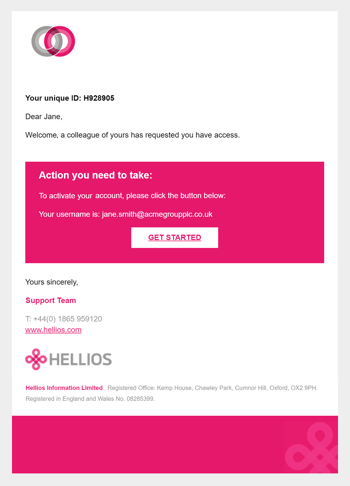
This will take you through to the following page where you can set your password.
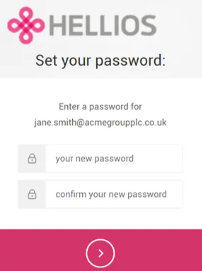
Enter your chosen password into the box provided, then again to confirm it.
When setting your password, you will be asked to make it strong by ensuring it is at least 8 characters long and includes the following: lower case letters, upper case letters, numbers and special characters.
Once done, click the submit button to set your password.
You will then be taken to the main system login page.
How to logon
Browse to the FSQS-NE system via https://fsqs-ne-buyer.hellios.com.
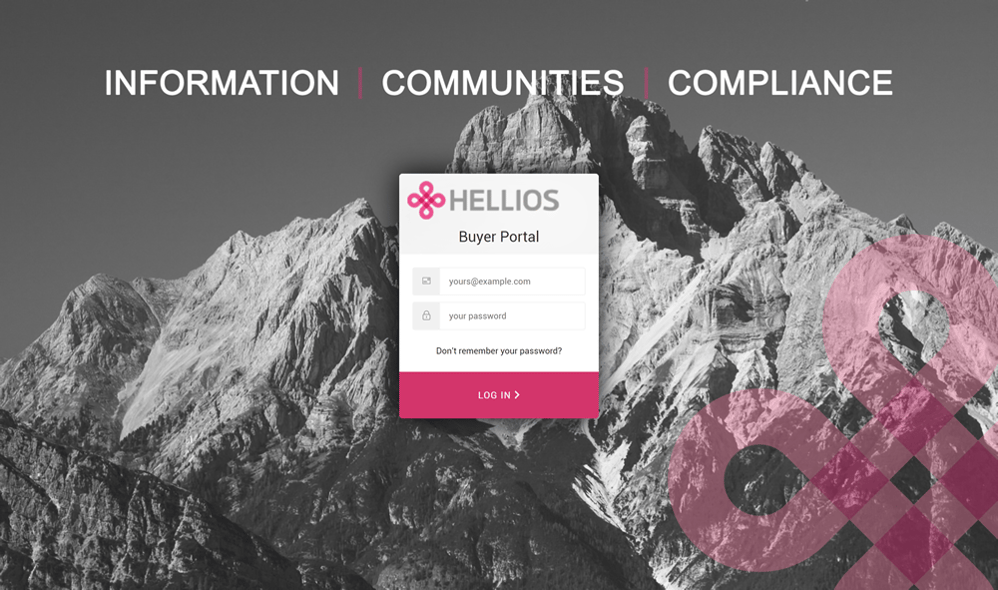
Enter your username and password, then click the pink ‘Log in >’ button to access the system.
How to reset your password
If in the future you forget your password, simply click the ‘Don’t remember your password?’ link to start the renew password process.
After clicking the link, you will be asked to enter your username – which is your registered email address – then click 'Send email'.
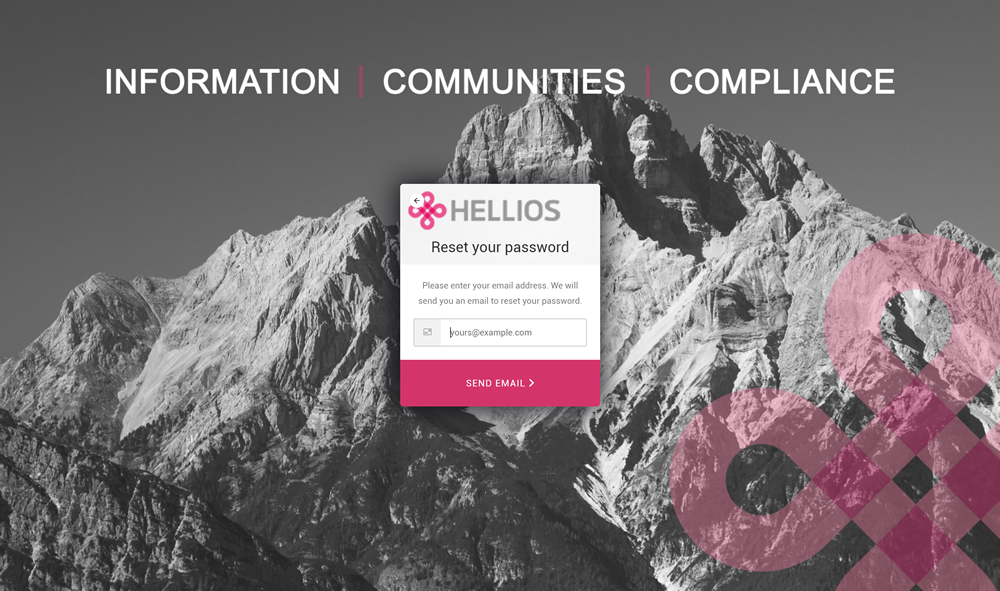
Check your inbox for the email which will contain a unique link for you to reset your password.
Click the link in the email and follow the process to reset your password, which is similar to the process you completed when initially setting your password.
Your home page
After logging in, the first screen you will see is your home page.

From here, you can access the key features of the system, either via the four boxes above the supplier search bar or via the left-hand navigation icons.
The key features of the system include:
- Suppliers page - On this page you can view all suppliers in your community, suppliers tagged to your organisation and suppliers you are following. You can also use multiple filtering on this page to find specific suppliers matching your criteria.
- Quick search - Search for suppliers on the homepage, by name, location, risk level, status or identifying number.
- Invite Supplier - If you would like to invite a new supplier to join the community, firstly please check that they are not already registered by searching their company name as broadly as possible. For example, try searching for 'Hellios' instead of 'Hellios Information Limited'.
- Reports - This area of the portal contains a reporting tool and Business Intelligence (BI) Dashboards. On this page, you can view, create and export reports to analyse supplier data within your organisation, or across your community.
- User management - Add new users from your organisation here, or make changes to existing users.
- My Profile - Update your own account and profile here.
Please note: Features may vary depending on your access level.
Navigation
From your home page, you can access all other areas of the platform, as follows:
 |
Home - use this to return to your home page at any time. |
 |
Suppliers - see an instant view of all suppliers in your community, suppliers tagged to your organisation or suppliers you are following. |
 |
Reports - build, save and export reports. |
 |
User management - use this to invite colleagues. |
 |
My profile - update your own details. |
 |
Log out |
Finding suppliers
How to search for a specific supplier record
Using the search box (highlighted below) on the home page, enter the name, location, risk level, status or identifying number of the supplier you wish to find.

If the supplier is registered, their information will appear on the search results:

To access the supplier record, simply click the supplier's name.
This will take you through to the supplier overview page:

From this page you can:
- View the supplier's Questionnaire Status, Document status and Renewal or Deadline date.
- View the primary contact details for the supplier.
- View the supplier's SME determination.
- Download a PDF of the supplier's details and published information.
- View the supplier's full published questionnaire answers and documents.
- Tag the supplier to your organisation (if you are an admin user).
- Follow the supplier to receive alerts to your email address.
- View the suppliers latest annual revenue and total employees.
- View the products and services provided by the supplier.
- View all policies/accreditations/insurances held by the supplier.
Note: Some of the information above will only be available for suppliers with a published questionnaire.
How to review supplier status
At the top of the page there are three boxes detailing the supplier's:
- Questionnaire status
- Documents status
- Overall status

Questionnaire status

This indicates the supplier's high-level RAG questionnaire completion or renewal status. For current, published suppliers this will be Complete and Green.
Other statuses you may see here include Invited, In Progress, In Validation or Expired. If the colour of the status is Amber, the deadline for the supplier to complete their questionnaire is within the next two weeks. If it is Red, the supplier has exceeded their completion or renewal deadline.
Documents status

This indicates the validity of the supplier's documents, such as insurances and certifications. Green signifies that all documents are in date.
Amber signifies that one or more documents are due to expire soon or have recently expired. If the status is Red, one or more of the supplier’s documents have not been updated within the four week grace period allowed post-expiry.
Questionnaire Deadline / Questionnaire Renewal

This indicates the date the Supplier needs to complete or renew their questionnaire by.
How to review supplier's questionnaire answers
To view the supplier's questionnaire, simply click on 'Questionnaire' on the navigation panel

This will load a list of the questionnaire sections that the supplier has completed. Click on the section names to view the supplier's corresponding information and documents. You can also tick 'Expand all' to expand every section.

The supplier's questionnaire answers can also be downloaded as a PDF. Click on the 'Downloads' button on the right hand side of the page, then click 'Questionnaire' to download a full copy of the supplier's details and questionnaire answers.

Suppliers page
How to search for suppliers that match multiple criteria
To access the suppliers page, either click 'Suppliers' on the navigation bar or 'View all Suppliers' on your home page. This will take you to the following screen:
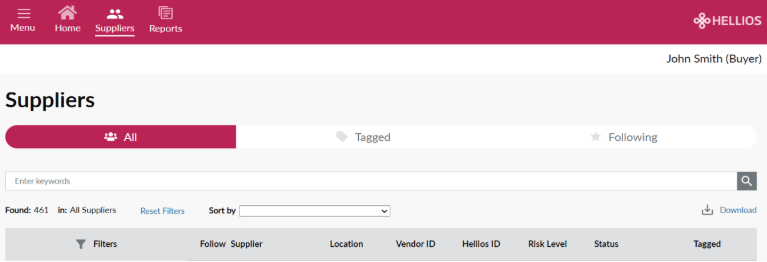
At the top of the suppliers page, you can toggle between any of the three options.

- All Suppliers - View all suppliers registered in your community.
- Tagged Suppliers - View Suppliers tagged to your organisation.
- Following Suppliers - View Suppliers you are following (this list is specific to the suppliers you are following).
Clicking any of the three options above will update the list of suppliers in the search results table.
This page also allows you to quickly and easily search for suppliers using multiple criteria, including goods or services supplied, supplier completion status, certifications held and other criteria. This can greatly speed up the process of sourcing suppliers for a new or renewing contract, RFx shortlists or for market research.
Your search results can be filtered using the criteria in the left panel as well as by using the main search bar.
Scroll down the page to see the full list of filters, including status, product/service categories, size, location and policy documents.
Having selected the filters you wish to use, click the 'Apply Filters' box to update your search results. Click 'Reset Filters' at any time to return to your original search results.
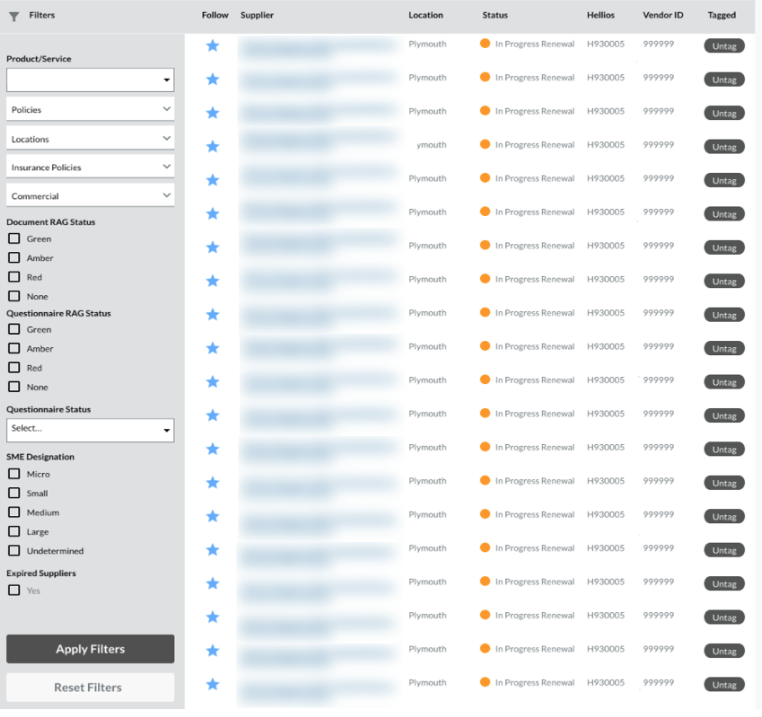
The right-hand panel displays your list of search results. From this panel you can:
View the supplier record.

Clicking the supplier name will take you through to that supplier's overview page where you can view all information about the supplier, including their questionnaire answers and any documents they have uploaded.
Follow a supplier, to keep track of updates and progress of the supplier.

Tag a supplier to your organisation (if you are an admin user).

Adding a new supplier
Please note: Only Admin users can request new suppliers.
If you would like to invite a new supplier to join the community, firstly please check that they are not already registered by searching their company name as broadly as possible. For example, try searching for 'Hellios' instead of 'Hellios Information Limited'.
If you find the supplier is not already registered, simply click the 'Invite Supplier' button on the homepage.

This will open up the following form:

Complete all information then click the 'Continue' button at the bottom right-hand corner. Once you have confirmed all details are correct, click 'Invite Supplier' to submit your invite request. On receipt of your request, Hellios will review and verify the supplier before processing their invitation, normally within one working day.

All fields without an 'optional' tag against them must be completed before the 'Continue' button is enabled.
Hellios recognise that occasionally suppliers need to complete the process more urgently and have included a 'Fast Track' option. If you need to Onboard a supplier urgently, tick 'Yes onboard urgently' at the bottom of the page.

Please note: fast-track is designed for exceptional use only.
Following & tagging suppliers
How to follow and recieve email alerts for supplier changes
The system includes a 'Follow' feature to allow users to receive daily email notifications on chosen suppliers' registrations.
If you choose to follow a supplier, you will be sent email updates daily or whenever there is a change in the supplier's questionnaire status, documents status or CompanyWatch H-Score.
You can opt to 'Follow' a supplier from either the search results page:

Clicking the star icon to follow a supplier will open the following box. From here you can select which changes you would like to track for that supplier.

You will then notice the 'Follow button on the supplier record page change to 'Followed' and the 'Follow' star icon on the search results change to a blue star:

How to link a supplier to your organisation
Please note: Only admin users can tag suppliers
Tagging a supplier provides a simple way to link that supplier to your organisation for:
- Reporting and dashboards.
- So that Hellios knows to manage the supplier on your behalf.
- And so that the supplier is presented with your code of conduct compliance questions in Stage 1, if relevant.
It allows you to store information, comments and documents about that supplier that only colleagues in your organisation can view.
To tag a supplier, simply either click ‘Tag’ button next to each supplier listed in your search results:

Or click ‘Your information’ on the View Supplier page:

Either will take you through to the following screen where you can add information. Enter a value in the 'Vendor ID' field to tag the supplier to your organisation:

The system will auto-save any information you add. As soon as you add a Vendor ID, the supplier will become 'Tagged' which is indicated underneath the suppliers name and in the search results list.
Reporting & exporting information
How to view a report
Use the enhanced reporting tool to create, save and export powerful reports across your organisation's supplier community.
Click the reports icon on the main navigation at the top of the page to access reports.
On this page you will see three tabs:
- Community reports – common reports available to all users of the community
- Buyer reports – reports that are specific to your organisation
- My reports – reports that are personal to you
How to build, save, share and export a report
To create a new report, simply click the 'Create Report' button to the top right of the screen. This will open up the report builder.

Any field in the Questionnaire as well as system fields such as supplier statuses, risk level and SME determination, can be reported on.
Data can be filtered using the filter column on the right-hand side (click the < symbol to open the filter panel.)

Multiple filters can be added by dragging more fields onto the filter column. Each criteria can be controlled further by selecting how it should be evaluated. Click the link to the top right of the screen to view the options, which includes equal to, not equal to, before, after and ranges.

Whilst building the report, you can undo or redo elements using the buttons on the toolbar:

Adjust the sort order of columns using the 'Sort' button:

And select whether to work with sample data, a full data set or no data at all when creating your report.

To save this report, click the 'Save Icon'.
Dashboards & business intelligence
How to view and use dashboards
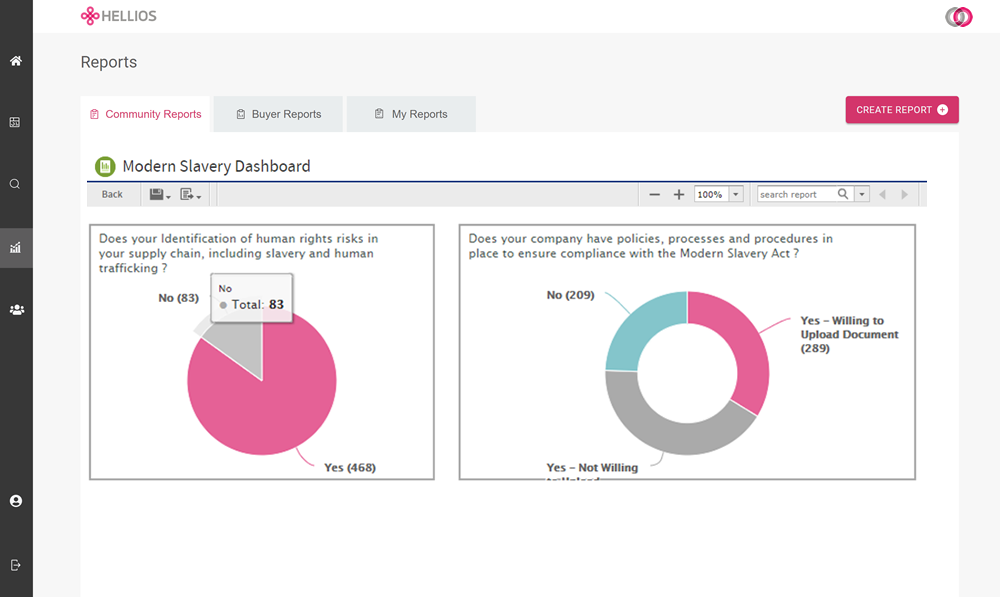
The dashboards tool allows you to consume and interpret data through visualisations and charts. Select from a wide range of topics in the Community Reports tab:
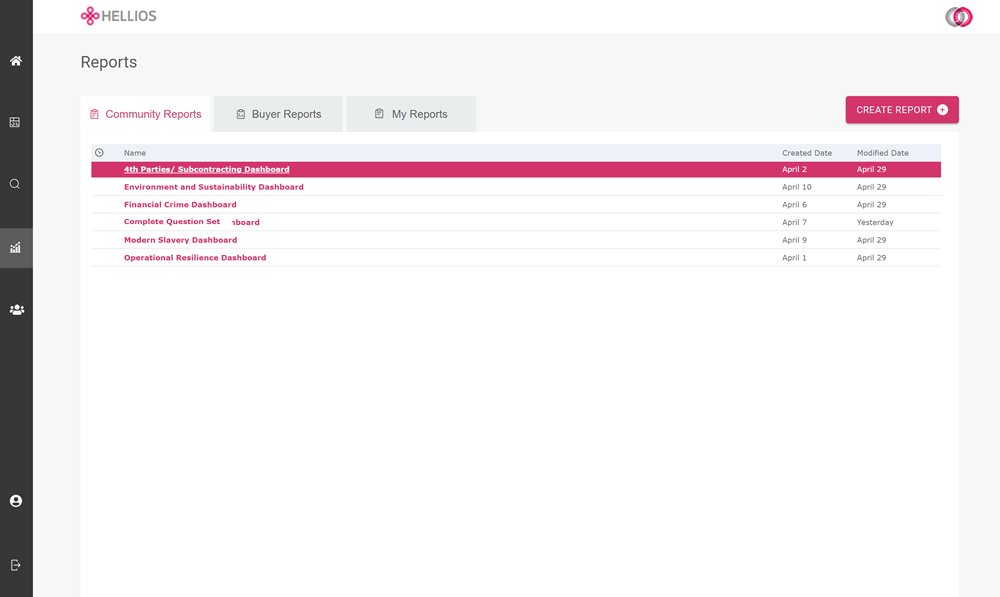
This will open the dashboard:
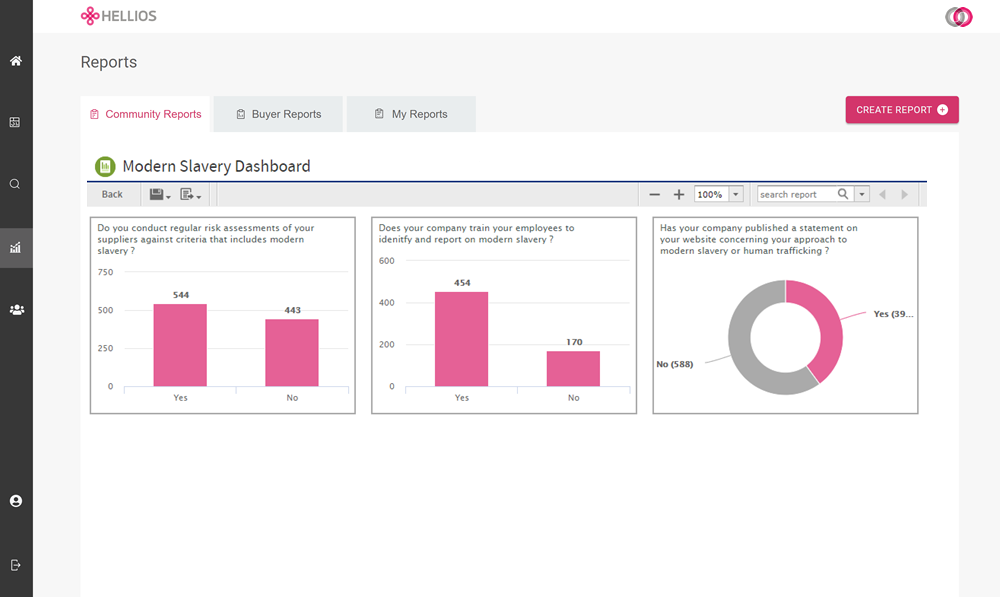
Interact with data by clicking the charts to drill into key areas of interest:
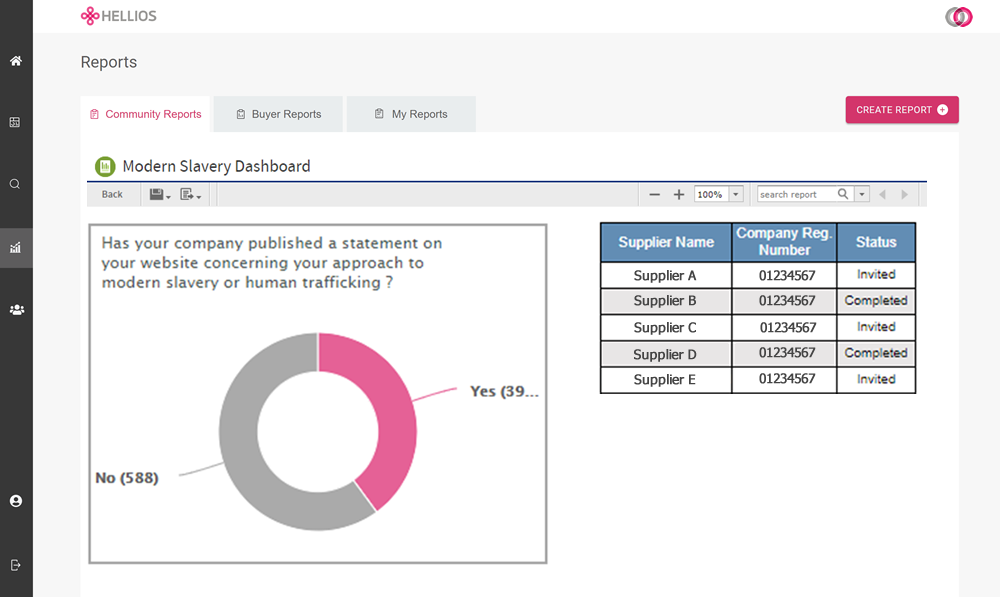
View the suppliers associated with your selection complete with their company registration number and questionnaire status:
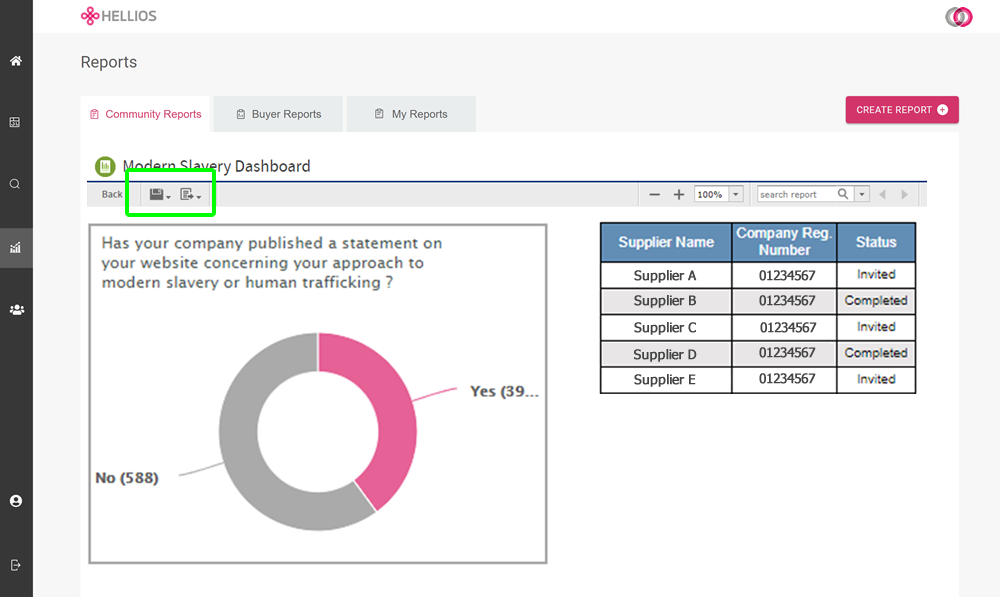
As with all reports, you can save and download dashboards using the save and export buttons.
User management
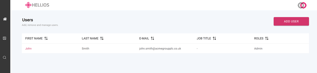
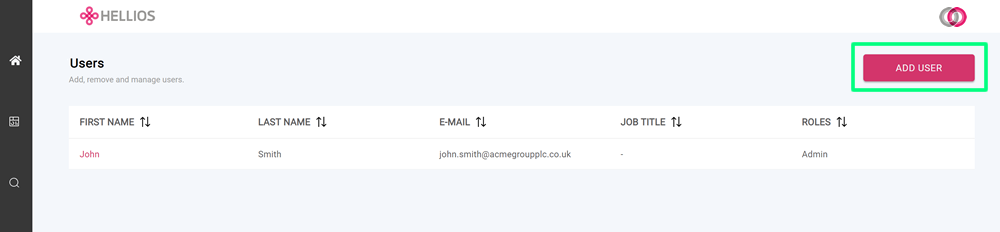
If you are an admin user, you can manage all users for your organisation from one screen.
Click the user management icon on the left-hand navigation to access the user management screen.
Adding a user
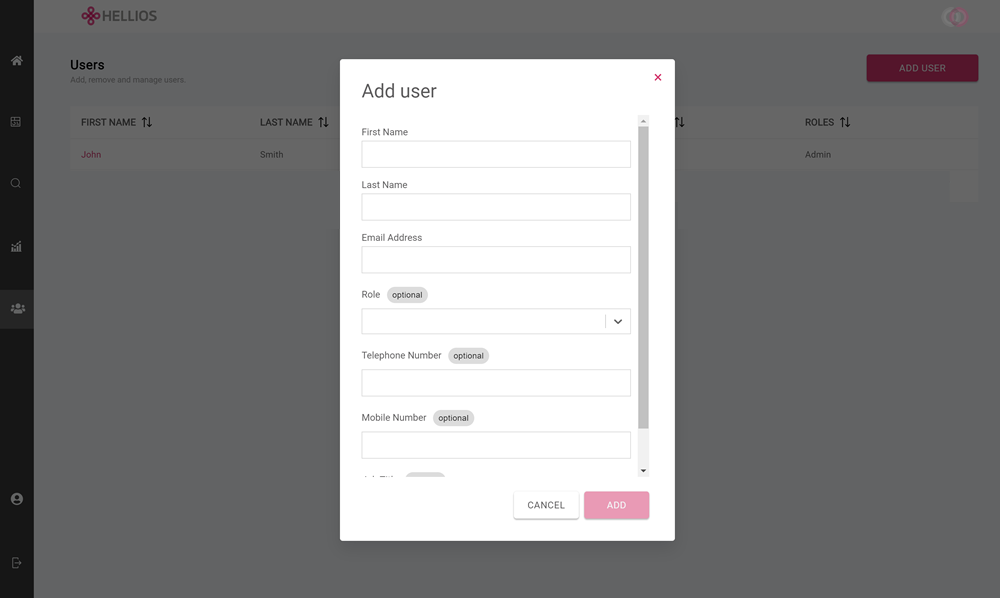
Clicking the 'ADD USER' button will launch a form for you to add the new user's details.
Complete the form, then click the 'ADD' button to add the user.
Changing user details/permissions
Click the user's name to access their account, make any amendments then click 'Save'.
Changes will be active immediately.
There are three possible roles for users - Standard, Standard Plus and Admin.
All users can search, view reports, view dashboards, follow suppliers and see which suppliers are tagged to your organisation.
Standard plus and admin users have the added ability to build reports.
Admin users are also able to create and manage users for your organisation as well as tag and un-tag suppliers.
My account
Use the 'My Account' section to manage your own account information and credentials.
Click the icon on the left-hand navigation to access your account profile page. From here you can update your details.
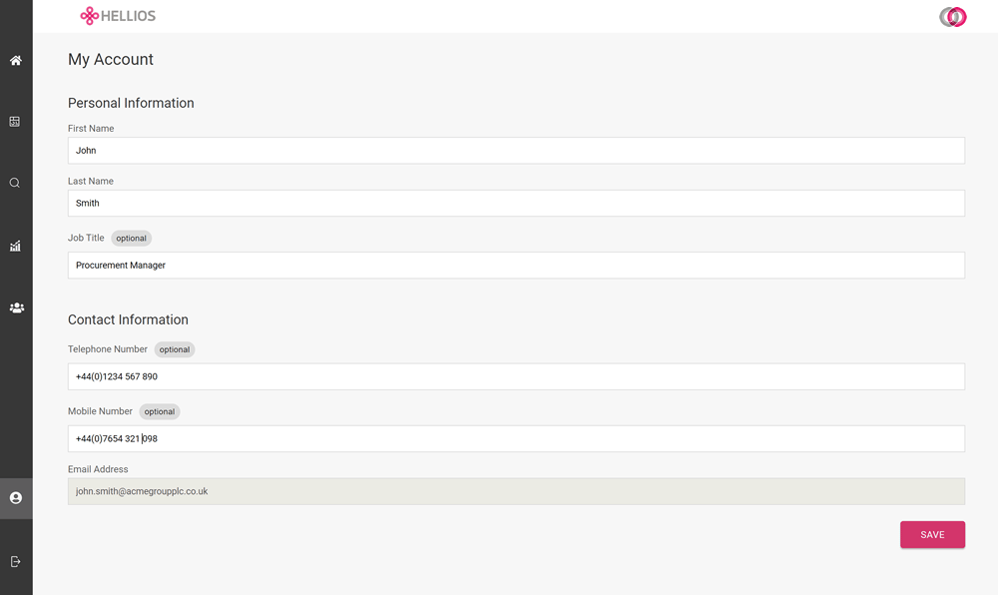
Please note: You cannot change your email address as this is intrinsically linked to your system access. If you need to change your email address please contact the FSQS Support Team via fsqs-ne@hellios.info or +31 (20) 399 4730.